Lesson 7: The Globus command-line tool
The Globus command line interface provides a powerful way to manage transfers between collections and check status of tasks.
The package can be installed via pip. Detailed instructions are
here, but essentially on a Linux system, you
can create a virtualenv and then install the package as follows:
virtualenv globusenv
source globusenv/bin/activate
pip install globus-cli
The installation is only required once - to make it available for future
sessions, you only need to run source globusenv/bin/activate to activate the
virtualenv again.
The globus documentation is useful
to see the scope of this tool. globus list-commands will also give you a full
list of options.
In this lesson we will show you how to login and show some helpful examples.
This is a tool for managing transfers between collections
This is a command-line interface for managing transfers via the Globus cloud-based service, it is not designed for uploads/downloads to your local machine.
Logging in
Running globus login will open a browser window for you to authenticate.
globus login
You are running 'globus login', which should automatically open a browser
window for you to login.
After logging in, you will be presented with the following:
You have successfully logged in to the Globus CLI!

You can check your primary identity with
  globus whoami

For information on which of your identities are in session use
  globus session show

Logout of the Globus CLI with
  globus logout
Accessing collections
Collections in the command line tool are accessed via their UUID, which is visible in the web interface - see lesson 3 where we first covered UUID.
To simplify the process, we set up environment variables to help us identify each collection. We will continue using the public Globus Tutorial collections from the previous lessons:
export GLOBUS_TUTORIAL_COLLECTION_ID1="6c54cade-bde5-45c1-bdea-f4bd71dba2cc"
export GLOBUS_TUTORIAL_COLLECTION_ID2="31ce9ba0-176d-45a5-add3-f37d233ba47d"
To see the content of a collection, we use the globus ls command. The first
time we access a collection, we are required to give consent so that the
command line tool can access it.
$ globus ls $GLOBUS_TUTORIAL_COLLECTION_ID1

The collection you are trying to access data on requires you to grant consent
for the Globus CLI to access it.

Please run:
  globus session consent 'urn:globus:auth:scope:transfer.api.globus.org:all[*https://auth.globus.org/scopes/6c54cade-bde5-45c1-bdea-f4bd71dba2cc/data_access]'
Running the command provided will open a browser window similar to the one shown below:
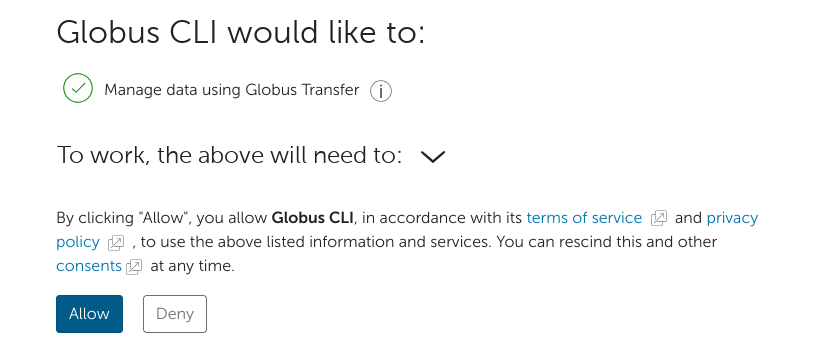
This will need to be done for each new collection.
We can now access the collection and list the contents:
$ globus ls $GLOBUS_TUTORIAL_COLLECTION_ID1
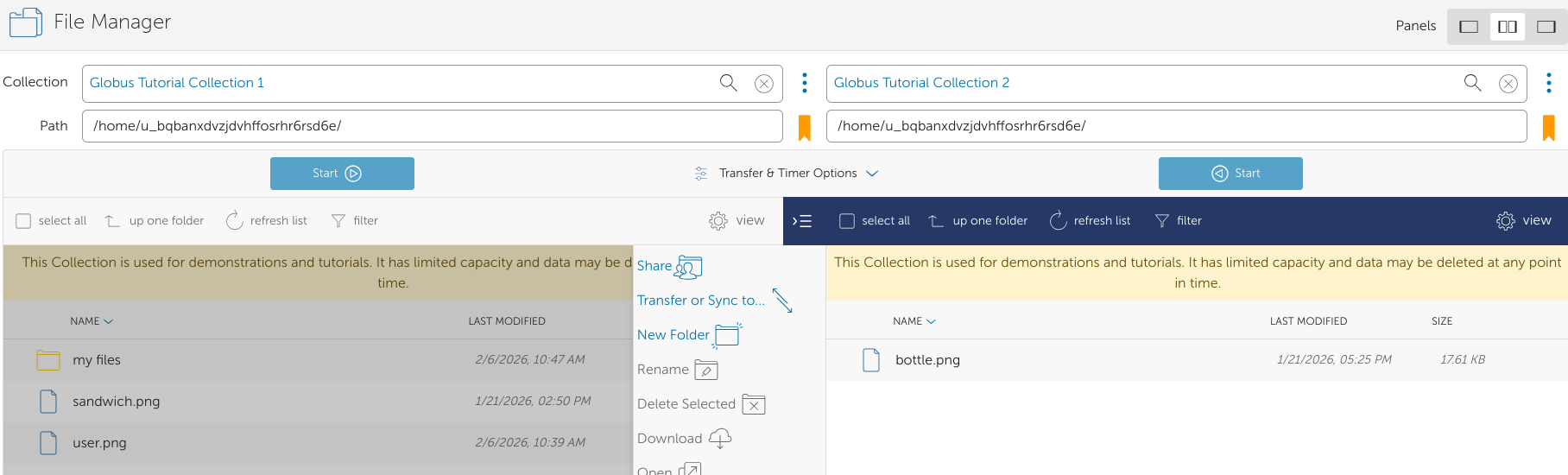
my files/
sandwich.png
user.png
$ globus ls $GLOBUS_TUTORIAL_COLLECTION_ID2
bottle.png
We can verify that what we see via the command line is the same as what we can see via the web interface:
Transferring files
We can transfer files using the command line interface as follows:
$ globus transfer $GLOBUS_TUTORIAL_COLLECTION_ID1:sandwich.png $GLOBUS_TUTORIAL_COLLECTION_ID2:sandwich.png

Message: The transfer has been accepted and a task has been created and queued for execution
Task ID: d6d11078-0349-11f1-8328-0affe9df1385
The destination file does not necessarily have to be the same name. If the transfer is large, it may take some time. We can check the status of the task as follows.
$ globus task show d6d11078-0349-11f1-8328-0affe9df1385
Label:                        None
Task ID:                      d6d11078-0349-11f1-8328-0affe9df1385
Is Paused:                    False
Type:                         TRANSFER
Directories:                  0
Files:                        1
Status:                       SUCCEEDED
Request Time:                 2026-02-06T10:51:51+00:00
Faults:                       0
Total Subtasks:               2
Subtasks Succeeded:           2
Subtasks Pending:             0
Subtasks Retrying:            0
Subtasks Failed:              0
Subtasks Canceled:            0
Subtasks Expired:             0
Subtasks with Skipped Errors: 0
Completion Time:              2026-02-06T10:51:54+00:00
Source Endpoint:              Globus Tutorial Collection 1
Source Endpoint ID:           6c54cade-bde5-45c1-bdea-f4bd71dba2cc
Destination Endpoint:         Globus Tutorial Collection 2
Destination Endpoint ID:      31ce9ba0-176d-45a5-add3-f37d233ba47d
Bytes Transferred:            17619
Bytes Per Second:             5781
If you lose track of task id numbers, you can use the globus task list
command:
$ globus task list
Task ID                              | Status    | Type     | Source Display Name          | Dest Display Name            | Label
------------------------------------ | --------- | -------- | ---------------------------- | ---------------------------- | -----
d6d11078-0349-11f1-8328-0affe9df1385 | SUCCEEDED | TRANSFER | Globus Tutorial Collection 1 | Globus Tutorial Collection 2 | None
2cea4cd3-0349-11f1-9b69-025da3873719 | SUCCEEDED | DELETE   | Globus Tutorial Collection 1 | None                         | None
215ddbe6-0349-11f1-9f40-025da3873719 | SUCCEEDED | DELETE   | Globus Tutorial Collection 2 | None                         | None
070f9794-0349-11f1-93d2-025da3873719 | SUCCEEDED | DELETE   | Globus Tutorial Collection 1 | None                         | None
Finally we can see that the file was transferred:
$ globus ls $GLOBUS_TUTORIAL_COLLECTION_ID2
bottle.png
sandwich.png
The transfer command is very powerful and allows options for sync (specify that only new or modified files should be transferred), dry-run, recursive copy, and listing batches of files in a text file. Full documentation is here.
Other tasks
Make and rename files and folders.
$globus mkdir $GLOBUS_TUTORIAL_COLLECTION_ID1:testing
The directory was created successfully

$ globus ls $GLOBUS_TUTORIAL_COLLECTION_ID1
testing/

$globus rename $GLOBUS_TUTORIAL_COLLECTION_ID1 testing new_name
File or directory renamed successfully

$ globus ls $GLOBUS_TUTORIAL_COLLECTION_ID1
new_name/
Recursively copy a directory:
globus transfer $GLOBUS_TUTORIAL_COLLECTION_ID1:new_name $GLOBUS_TUTORIAL_COLLECTION_ID2:new_dir/ --recursive
Message: The transfer has been accepted and a task has been created and queued for execution
Task ID: b9fea9ca-0357-11f1-b10b-0affe9df1385

$ globus ls $GLOBUS_TUTORIAL_COLLECTION_ID2:new_dir/
sandwich.png
An in-depth list of commands and examples is available here.