Lesson 3: Finding Globus collections
In this lesson we will:
- locate a named collection
- inspect the contents with the file manager
- bookmark the collection for later
Once logged in, clicking in the search area under the File Manager section will allow you to search for a collection by name.
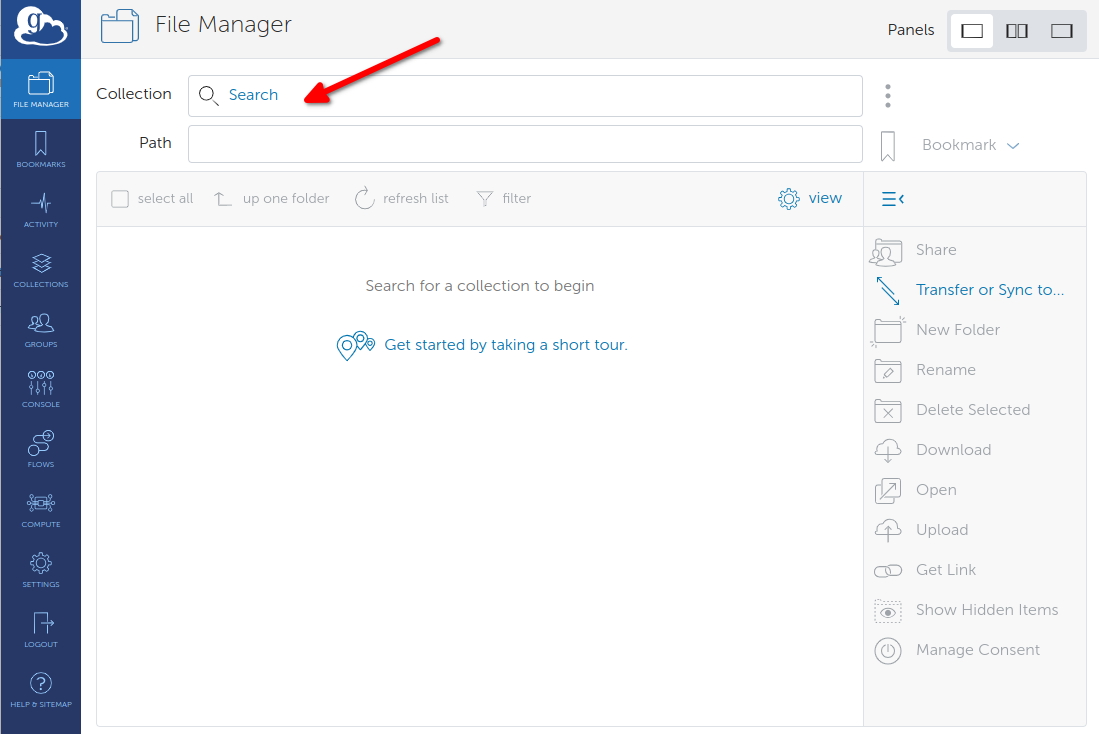
Type "Globus Tutorial Collection".
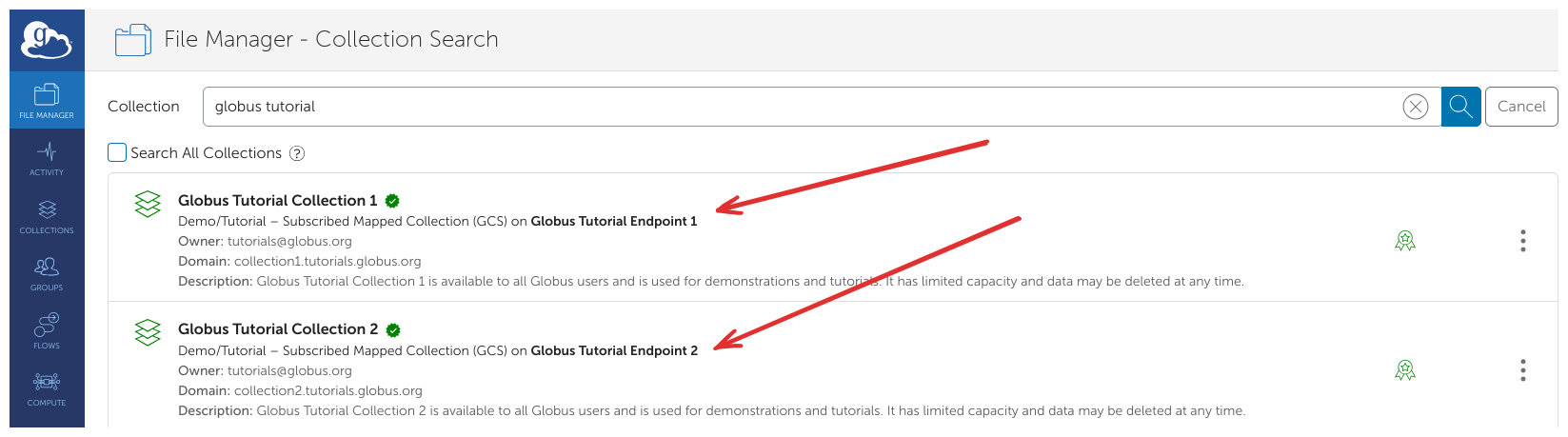
Globus will list collections with matching names. The collections Globus Tutorial Collection 1 and Globus Tutorial Collection 2 are administered by the Globus team for demonstration purposes and are accessible to all Globus users without further authentication, giving you the opportunity to follow along with this lesson.
Notice that you can see the owner of the collection and the description of each available collection, helping you to ensure that you don't use a similarly named one on a different server. These also have a Verified Collection status (the green tick symbol), giving you additional confidence that these are the correct collections to use.
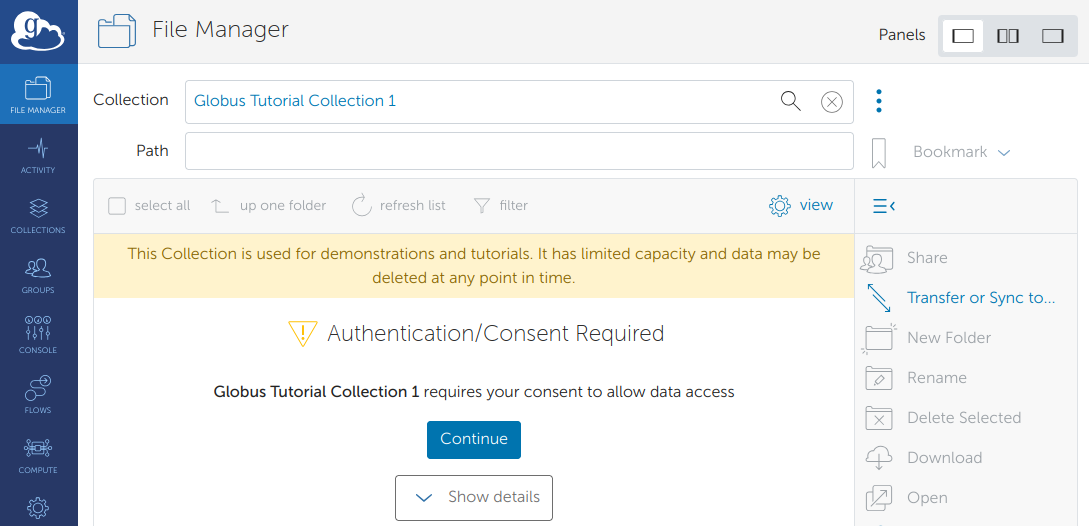
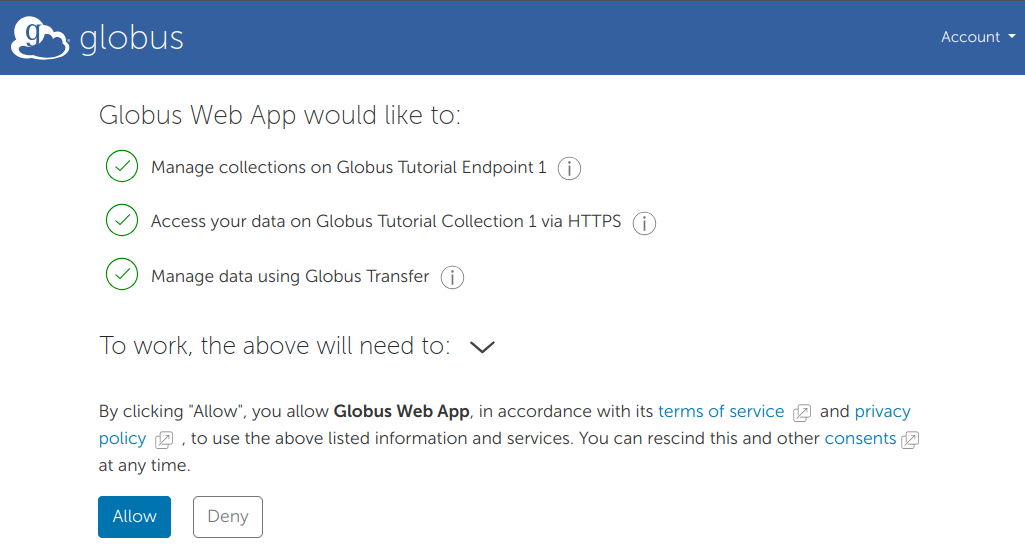
Click on Globus Tutorial Collection 1. If this is the first time accessing the collection, you will get an additional consent page. Clicking "Continue" will allow Globus to access that data with your account.
Globus will connect to the collection and display the default directory (it will be empty).
Note:
- The collection name
- Your individual path on this collection. This is a unique feature of the tutorial collection to provide users a small private allocation for demonstrations
- The folder is currently empty
- You can bookmark this for easier access in future
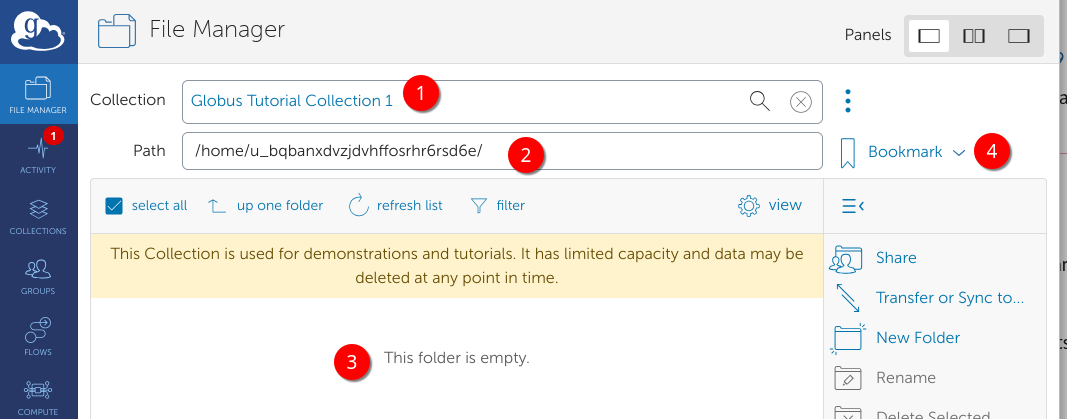
Go ahead and click bookmark to add a bookmark.
Repeat this process for bookmarking Globus Tutorial Collection 2. (You may need to consent here if this is your first time accessing the collection). You can search again for new collections by clicking the Collection box on the page, marked at (1) and typing the required name.
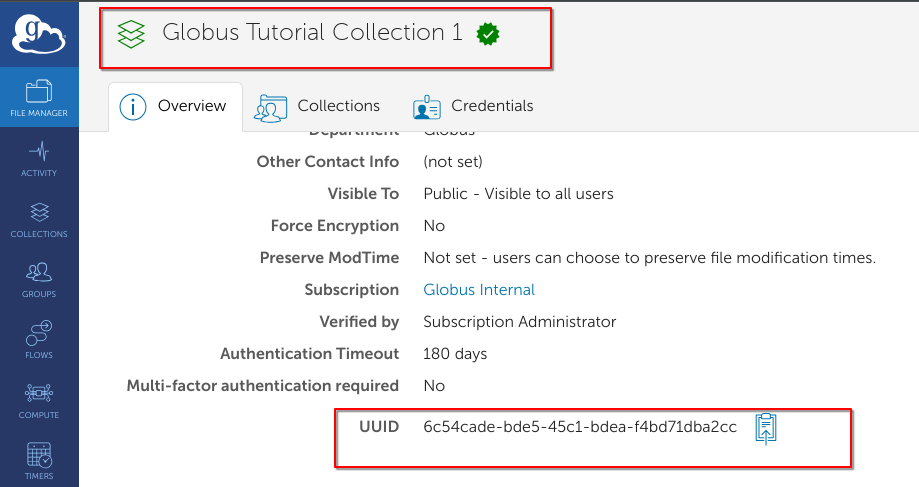
Globus collections each have a unique identifier
Another way to locate a collection is to search using the unique identifier (UUID) instead of using the name. The UUID can be obtained by clicking on the "kebab menu" (three dots) above the Bookmark link, marked (4) in the above screenshot. This opens the overview page for the collection and the UUID is shown at the bottom (see below)