Lesson 3: How to put files into an archive
This assumes you have access to an archive.
In this lesson we will:
- Prepare a tar file containing the data to be archived
- Transfer the file into the archive
Preparing files to be archived
You will need to prepare your files before placing in the archive
Since the archive storage uses tape media, the recall time is reduced considerably by having to locate and read fewer files.
Similar to how you would pack household items into larger boxes before placing
them into storage, you should collate your data for archival into tar files
before storage.
In the previous example we showed the contents of the Genome_files directory. In a real world scenario, we would tar this directory first with tar cvf Genome_files Genome_files.tar, and then place just the tar file, comprising a few hundred GB, into the archive. Note that on this occasion we aren't compressing the tar file because the component files are already compressed.
In this terminal session below we are currently viewing the files in the globus
directory for the QM-Globus_Training collection. The folder SRR015379
contains some large files that we want to deposit in the archive
Archive-QM-Globus-Training.
A tar file SRR015379.tar is created, leaving the original files intact. This file will be deposited in the archive.
$ cd /data/QM-Globus-Training/globus
globus$ ls
20130502  SRR015379
globus$ ls SRR015379/
big_file10.gz  big_file4.gz  big_file8.gz   SRR015389.recal.fastq.gz
big_file1.gz   big_file5.gz  big_file9.gz
big_file2.gz   big_file6.gz  SRR015379_1.recal.fastq.gz
big_file3.gz   big_file7.gz  SRR015379_2.recal.fastq.gz
globus$ tar cvf SRR015379.tar SRR015379/
SRR015379/
SRR015379/SRR015379_1.recal.fastq.gz
SRR015379/big_file9.gz
SRR015379/big_file5.gz
SRR015379/big_file7.gz
SRR015379/big_file3.gz
SRR015379/big_file6.gz
SRR015379/big_file4.gz
SRR015379/big_file1.gz
SRR015379/SRR015389.recal.fastq.gz
SRR015379/big_file10.gz
SRR015379/big_file2.gz
SRR015379/big_file8.gz
SRR015379/SRR015379_2.recal.fastq.gz
globus$ ls
20130502  SRR015379  SRR015379.tar
Moving files into the archive
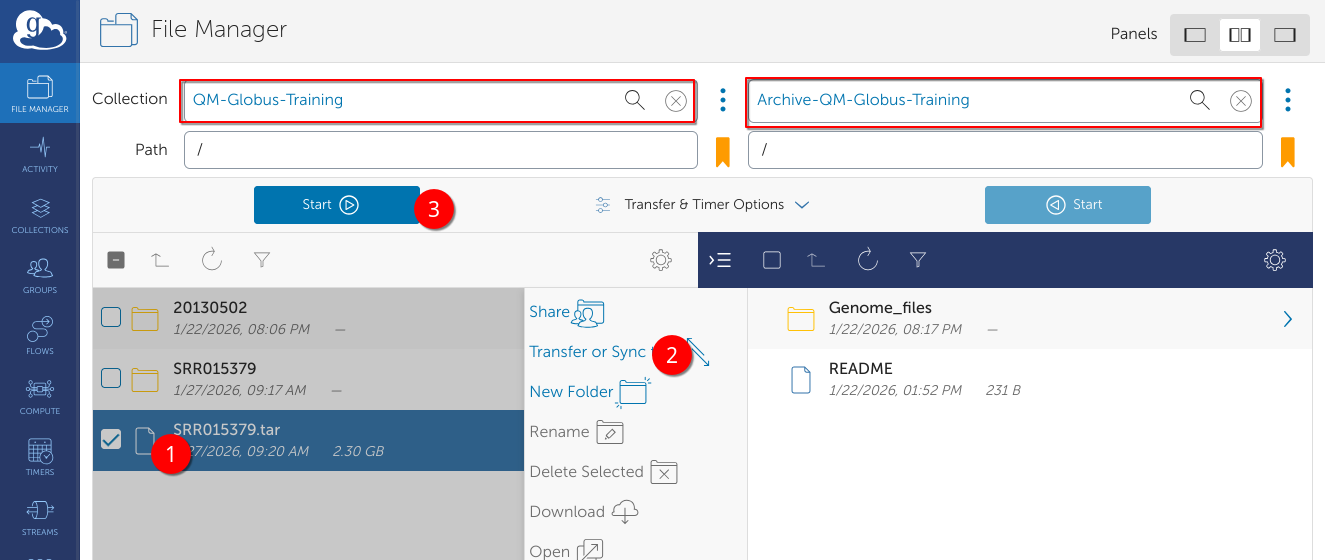
We visit app.globus.org and access the 2 collections QM-Globus-Training (where the source data resides) and Archive-QM-Globus-Training (the destination we wish to deposit data into). We select the newly created tar file, click Transfer and Sync, ensure we have navigated to the desired folder and click Start.
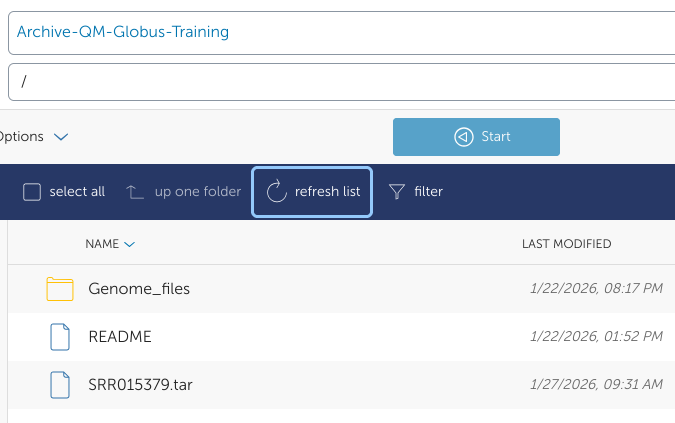
When the task is complete, we click Refresh list on the destination collection and observe that the file has been transferred.
By design, the file will first be backed up to our regular disaster-recovery (DR) backups, then sent to the archive storage. If the file is not accessed during the next 7 days, the file will be removed from disk and only present in the Archive, and DR backup, until recalled.
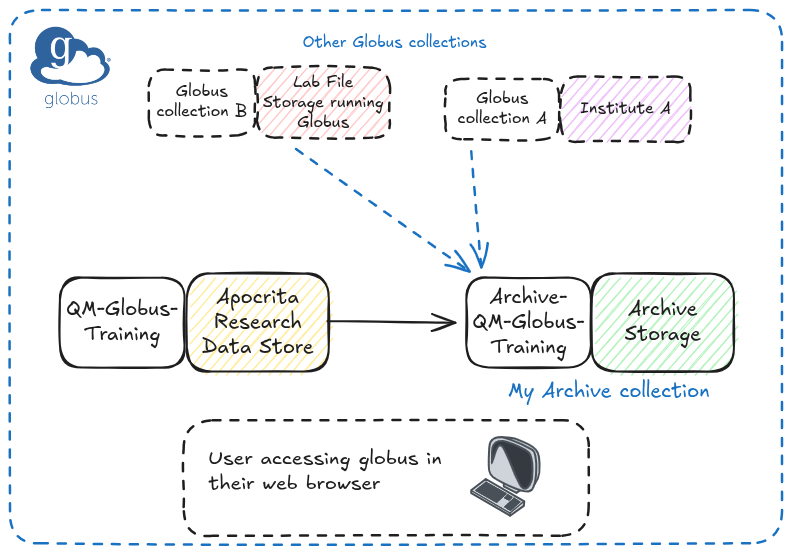
The below diagram shows what we have just done. The data passed directly between the two collections, and did not need to go through Globus central service or copy data to our laptop first.
Any globus collection can be used as a source
Note that, although the source collection in our example resides on Apocrita, the data can be copied from any Globus collection you have read access to.
Now that the data has been prepared and placed in the archive, the original data can now be removed from the source Collection, in this case QM-Globus-Training.