Lesson 6: Using Globus Connect Personal
Globus Connect Personal is an application that turns your machine into a Globus endpoint , effectively a bucket on your laptop for bulk file operations, directly between the remote collection to and machine.
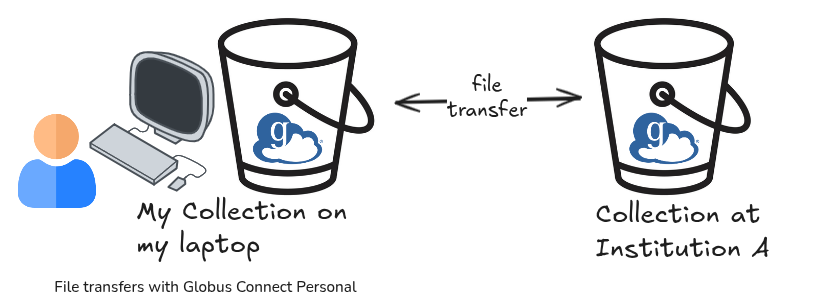
Follow the official documentation to install, and create an endpoint. There are specific instructions depending on whether you are running Mac OS X, Windows or Linux . During the setup you are given the option to choose your destination directory for file copying, and the name of your collection.
Once complete, you can search for the name of your collection in the file manager (and bookmark it for safe keeping, as shown in the earlier lessons).
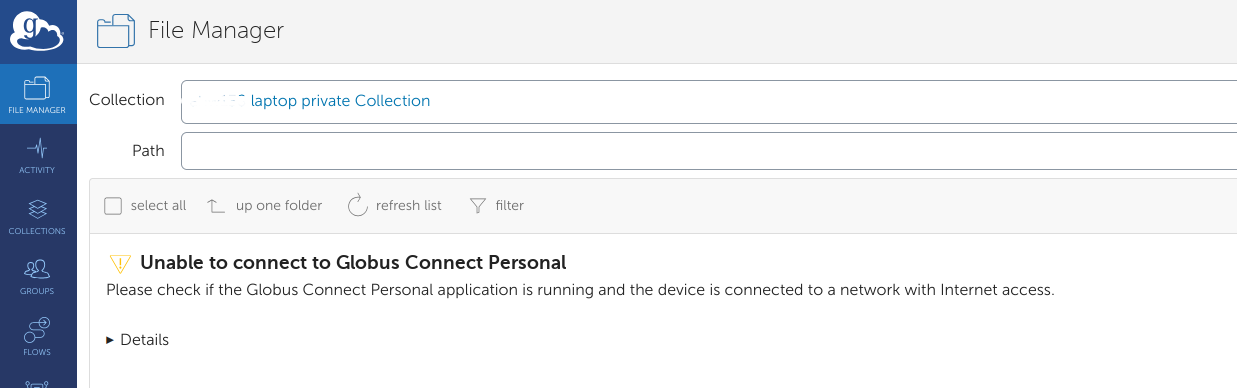
If Globus Connect Personal is not connected, you will see an error similar to this when trying to access the collection:
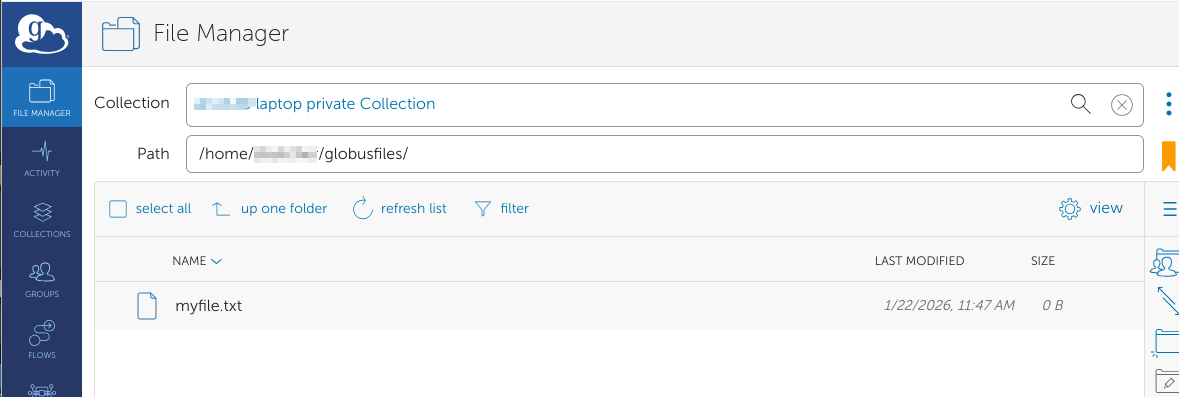
Once the software is running and connected, you can view the contents of your personal collection.
Transferring files between collections works in the same way as with 2 remote collections.
- select the dual pane option
- choose the remote collection
- select the file(s) to transfer
- click start
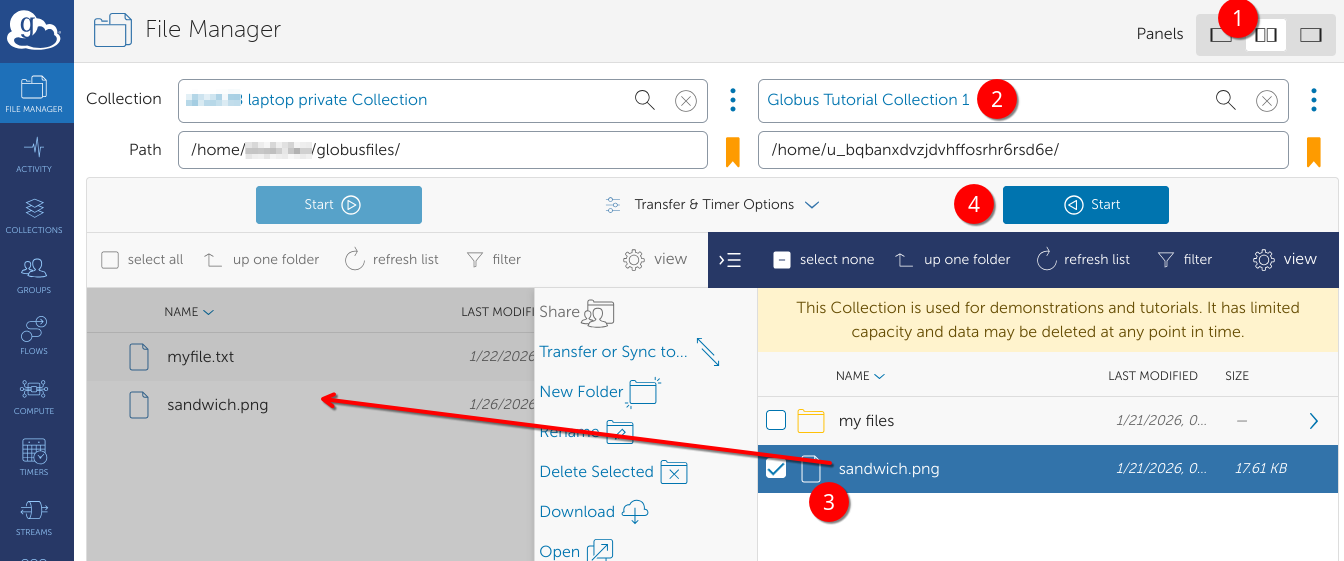
Files can be transferred in both directions.
Use Globus Personal connect for transfers
Globus Connect Personal is the recommended approach for uploading/downloading files to your local machine with Globus.